 1.8.1
Download Notcher 1.8.1 (Beta) for Windows 11
NOTE Notcher is still in development. Please note that we are still
upgrading and are very open to receive feedbacks from you.


Notcher 1.8.1
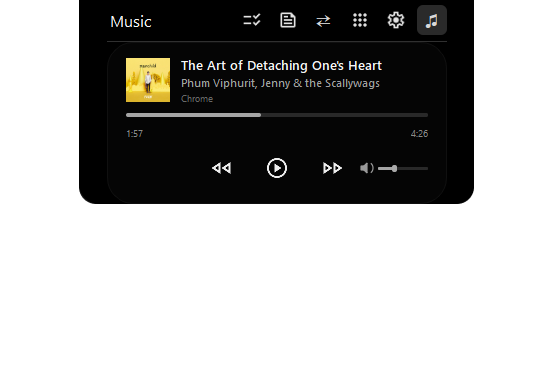
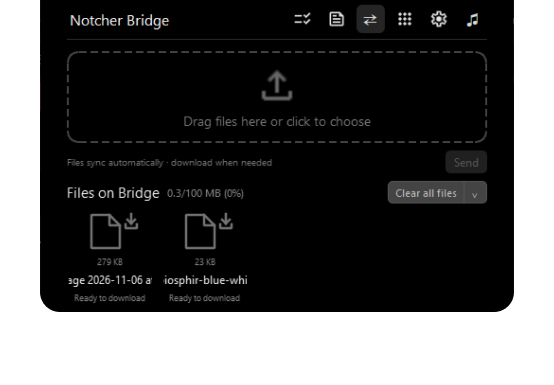
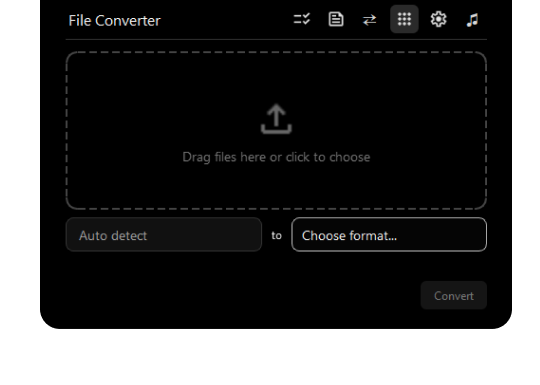
- Open Tasks, Notes, Notcher Bridge, Apps & Widgets, and Settings with Alt+1 through Alt+5. Alt+Space opens Music Overview.
- Open or close Quick Search with Alt+S. Search Google or enter a web address, open multiple tabs, and use Back, Forward, or Refresh. Open in browser opens the page in your default browser and closes the Notcher frames.
- Quick Search retains persistent website cookies across restarts. Pressing Enter in the address field keeps the popup open.
- Untouched new notes are discarded when you leave the editor, so they do not appear as empty notes.
Notcher 1.8.0
- Tasks and Notes open in a separate popup below the main Notcher frame, with a slide and fade transition.
- Pin a note or drag it outside Notcher to open a resizable window that stays on top. Shift-click several pinned notes to move them together.
- Add tasks with a calendar picker, 24-hour time wheels, tags, and notes. Open a task to review or edit those details.
- Drag to reorder tasks and notes. Rows shift as you move the item so you can see where it will land.
- Updated icons and empty-list messages in Tasks, Notes, and Notcher Bridge.
Notcher 1.7
Notcher Bridge
- Bridge now places the upload area on the left and the file list on the right, with storage usage beside the title.
- Files waiting to send appear in the same list. Use Send on a row, Send all files, or Send selected files from the right-click menu.
- Check files by clicking their rows or checkboxes. The right-click menu offers clear and download actions for individual, selected, or all files. Clearing files asks for confirmation and keeps local copies.
- Bridge storage limits are 100 MB on Free and 1 GB on Pro, with a 50 MB limit per file.
- Improved the first-launch login check so Bridge waits for your account status before showing Log in. Choosing or dropping files while signed out prompts you to log in. Switching into Bridge uses the same frame animation as other views.
- The Recipient menu opens upward, with + add recipient at the top and to my Bridge at the bottom. to my Bridge is selected by default. Contacts are saved on the current device. Sending to saved contacts is coming soon.
Tasks, reminders & notifications
- Use the clock next to the new-task field to set a reminder before saving. For an existing task, right-click to set, edit, or remove its reminder. Reminders are stored on the device and appear in a one-line banner. If Notcher is open, the banner waits until it collapses.
- Notification banners fit their text up to 900 px and shorten longer messages with an ellipsis. Hover over a banner to keep it visible. Choose and preview one of ten notification sounds in Settings.
- The Tasks view shows the number of unfinished tasks above the list.
- Notcher shows a wellness reminder about every 30 minutes of active PC use, with the elapsed active time and a suggestion to drink water, stretch, or take a break. Press Alt+/ to preview it.
Music, Tasks overview & Calendar
- Music now includes a Tasks overview and calendar beside the existing controls. Select a date to see unfinished tasks scheduled for that day. Today also includes unfinished tasks without reminders. Click Tasks to open the full list.
- Scroll the date strip without changing your selection, use Back to Today to return, or click Calendar to open the month picker. Select a date to slide it into focus. Back to Today appears when another date is selected or today scrolls out of view. Dots mark dates with scheduled tasks, and today stays red-orange even when another date is selected.
- Refreshed the Previous, Play, Pause, and Next icons and kept the volume slider beside the playback controls.
- Alt+Up/Down now behave like the Windows volume keys and repeat while held.
Account & recovery
- Sign up opens the BIOSPHIR website. Press Enter to submit the desktop login form and look for a confirmation after signing in.
- Forgot password? sends a code by email. Enter the code in Notcher, choose and confirm a new password, then return to login. You can collapse Notcher while waiting and reopen it to continue.
- Settings shows your current plan beside your email. Upgrade shows a coming-soon message.
Settings & appearance
- Choose Arimo, Roboto, or Montserrat in Settings. New defaults are Arimo, Sound 3, and a 300 ms Hidden hover delay. Reset to Default now asks for confirmation.
- Confirmation panels dissolve in and out. File Converter, PDF Merger, and PDF Split stay open while files are selected. Switching views or pressing Esc while focused asks before discarding the selection.
- Refined the top corners, improved secondary-text contrast, and made clicks near the hidden notch pass through to the app underneath.
- Removed view-header dividers and made view titles bold. Scrolling over a closed Settings dropdown no longer changes its value.
- The Apps view includes + add more from apps marketplace, which shows a coming-soon message.
Updates & fixes
- Open Settings > About > Check for updates to check for a newer public release and open its release page.
- Fixed a Windows startup crash after installation.
- Fixed a blank or stuck Bridge view when switching from File Converter, PDF Merger, or PDF Split.
Notcher 1.6
Notcher Bridge
- Added Bridge for sharing files between your devices signed into the same Notcher account.
- Choose files or drag and drop them into Bridge, then select Send. The file list updates automatically on your other devices; download files when you need them.
- Added background transfers, retry for failed sends, and cancellation for queued or active sends.
- Added support for files up to 50 MB each, with a 100 MB account upload quota check and a usage indicator such as 0/100 MB (0%).
- Added Delete and Clear all files, with confirmation before removing cloud copies. Existing local copies remain untouched.
- Added Download all files, with folder selection and separate names for files that would otherwise overwrite an existing file.
- Drag a file over closed Notcher and hold briefly to open Bridge for a quick drop. Notcher stays open during file selection and while files remain selected.
- Updated the upload area, enlarged the Bridge navigation icon, refined the split-action button, and added a minimal horizontal scrollbar.
- Added a delete confirmation popup aligned just below Notcher, matching its width with a small gap and a soft dissolve animation.
Hotkeys
- Added a Hotkeys reference in Settings.
- Alt+Space opens Notcher and keeps it open until you press it again or click outside.
- Ctrl+N creates a task or note from its list when you are not editing text.
- While Notcher is pinned open: Ctrl+P opens Apps, Ctrl+D opens Bridge, and Ctrl+O opens Bridge's file picker.
- When Notcher is closed or Hidden: Alt+1, Alt+2, and Alt+3 open File Converter, PDF Merger, and PDF Split. Number shortcuts follow the Apps list order.
- Alt+Right/Left skip tracks while music is playing; Alt+P plays or pauses; Alt+M opens the playing source and tries to select its browser tab.
- Alt+Up/Down change Windows volume by 1% per step and repeat while held. Volume shortcuts also trigger the Windows volume popup.
- Added Use hotkeys, enabled by default, so you can disable Notcher shortcuts when they conflict with another app.
- Added Disable hotkeys while another app is fullscreen, enabled by default, to temporarily release global shortcuts during fullscreen use.
Music
- Added a compact volume icon and slider beside Next, while keeping Previous, Play/Pause, and Next centered.
- Click the artwork or song title to open the music source, including when playback is paused.
- Improved fallback artwork when a song has no cover or the browser supplies its own logo.
- Added an animated playing indicator that stops when playback is paused.
- Made the song progress bar thinner at rest and larger while dragging.
- Added a brief Music preview after Next/Previous. It waits for the new track to be ready before starting its display time, then returns to your previous view. Click the preview to keep Music open.
Appearance & interaction
- Notcher now starts in Hidden mode with a solid black indicator. Enable Completely invisible in Settings if you prefer no visible indicator.
- Added smoother mouse-wheel scrolling throughout Notcher, including horizontal file browsing and note editing.
- Added consistent hand cursors for clickable controls.
- Smoothed and shortened closing animations, removing a source of brief window flicker.
- Icons and text now grow with the frame when opening from Hidden. Changes between open views keep their normal layout.
- Improved tool-window sizing and shortcut navigation to prevent stuck transitions.
Notcher 1.5
Accounts & synchronization
- Added account creation, login, and logout from Settings.
- Added a compact Login and Sign Up view within Settings, with account status and helpful error messages.
- Added encrypted sign-in session storage to keep your account signed in between app launches.
- Added manual synchronization for Tasks and Notes across devices using the same account. Open Settings, log in, and select Synchronize on each device to exchange changes.
- Synchronization includes task completion, note content, item order, and deletions. When changes conflict, the most recently updated version is kept.
- Added synchronization progress and result messages, with refreshed Tasks and Notes after a successful sync.
- Local task and note features remain available without signing in. Settings and app preferences are not synchronized.
Improvements & fixes
- Replaced Yes/No settings controls with compact animated toggle switches.
- Improved Settings navigation and separated the Login view from the scrolling settings list.
- Improved spacing around account actions.
- Moved login, sign-up, and synchronization work into the background to keep the interface responsive during those operations.
- Fixed an issue with passing login details to the sign-in process.
Notcher 1.4
Music controls
- Added a Music view for controlling media playing in compatible Windows apps.
- Added play/pause, previous, and next controls, with shuffle and seeking when supported by the media app.
- Added track title, artist, source app, artwork, and playback progress when available.
- Added fallback artwork when suitable track artwork is unavailable.
Settings & navigation
- Added navigation between Tasks, Notes, Apps, Settings, and Music.
- Made Settings scrollable while keeping Save Changes available.
- Added options to show remaining tasks on hover, open Music first, and open the Notch directly on hover.
- Added Reset to Default to restore and save the default settings.
Notcher 1.3
Tasks & notes
- Added Notes, with multiple notes that can be opened, edited, reordered, and deleted with inline confirmation.
- Completed tasks now move below incomplete tasks automatically.
- Added drag-to-reorder within the incomplete and completed task groups.
- Added task context-menu actions for editing, deleting, moving up, and moving down.
- Added an option to hide completed tasks.
File tools
- Added an Apps view with File Converter, PDF Merger, and PDF Split tools.
- Added support for selecting and reordering multiple files before conversion.
- Added conversion options for supported PDF, DOCX, PNG, and JPG inputs, including PNG to ICO.
- Added the option to convert files individually or combine them into one PDF.
Desktop experience
- Added an option to launch Notcher when you sign in to Windows.
- Notcher stays out of the taskbar and can be restored or quit from the system tray.
- Improved the active Settings indicator and navigation back to Tasks.
- Added the Notcher application icon.
Notcher 1.2
Settings & usability
- Added Settings for the hide delay, hover-to-reveal delay, and task-deletion confirmation.
- Added Save Changes and Back controls for applying or discarding pending settings changes.
- Improved spacing around the inline Confirm Delete control.
- Added a pointing-hand cursor to interactive controls.
Notcher 1.1
Task editing & interaction
- Added inline editing for existing tasks.
- Added inline deletion confirmation to help prevent accidental task removal.
- Reduced the hover-to-reveal delay from 2 seconds to 0.5 seconds.
Notcher 1.0
Initial release
- Introduced a desktop task list with Hidden, Closed, and Opened Notch states.
- The Hidden state displays a thin strip at the top center of the screen. Hover over it for 2 seconds to reveal the Closed state.
- The Closed state displays the number of incomplete tasks; the Opened state displays the task list.
- Added task creation, completion tracking, deletion, and reordering controls.
- Added Hide Notch to hide the Notch when it is not in use. Disable it to keep the Closed state visible.